9 ways to use NFC
Consistent brand on every card
Every employee's card and page follow the same colours, logo and layout, so the brand looks the same in every meeting.
No reprints when people change roles
When a designation, number or office changes, update the page. The card in their wallet stays the same.
Pause cards when people leave
Pause a departing employee's card or redirect it to the new contact person, so clients never reach an old number.
Department and employee details
Add department and employee codes for internal use, and show only what clients need on the page.
See which teams are networking
Card insights show how often cards are opened, which helps sales and business development teams see activity.
Onboarding kits
Add an NFC card to new-joiner kits so new employees are ready for client meetings from day one.
Office and reception
A review or visitor stand at reception can open your company page, a visitor form or Google reviews.
Events and sponsorships
Give booth staff cards that open a campaign page or brochure for that event.
Greener than paper
One durable card per person replaces boxes of paper cards that are reprinted and thrown away after every change.
What to put on your page
Keep it short. These are the buttons people look for first, in this order:
- Company logo and colours
- Employee name, title and department
- Office phone, mobile and email
- Company website and brochure
- Office address and map
Setup checklist
- Share your brand guidelines or current visiting card design.
- We send a design proof for approval.
- Share the employee list in a spreadsheet; we create every page.
- Cards are delivered with a list so each person gets the right one, and you manage them from one account.
Mistakes to avoid
Letting everyone design their own page. Fix the layout and colours centrally and let employees edit only their personal links.
Forgetting to plan for leavers. Decide who pauses cards when someone leaves, so old cards never show wrong details.
Ordering exact numbers only. Order a few spare cards for new joiners and replacements.
Products that fit
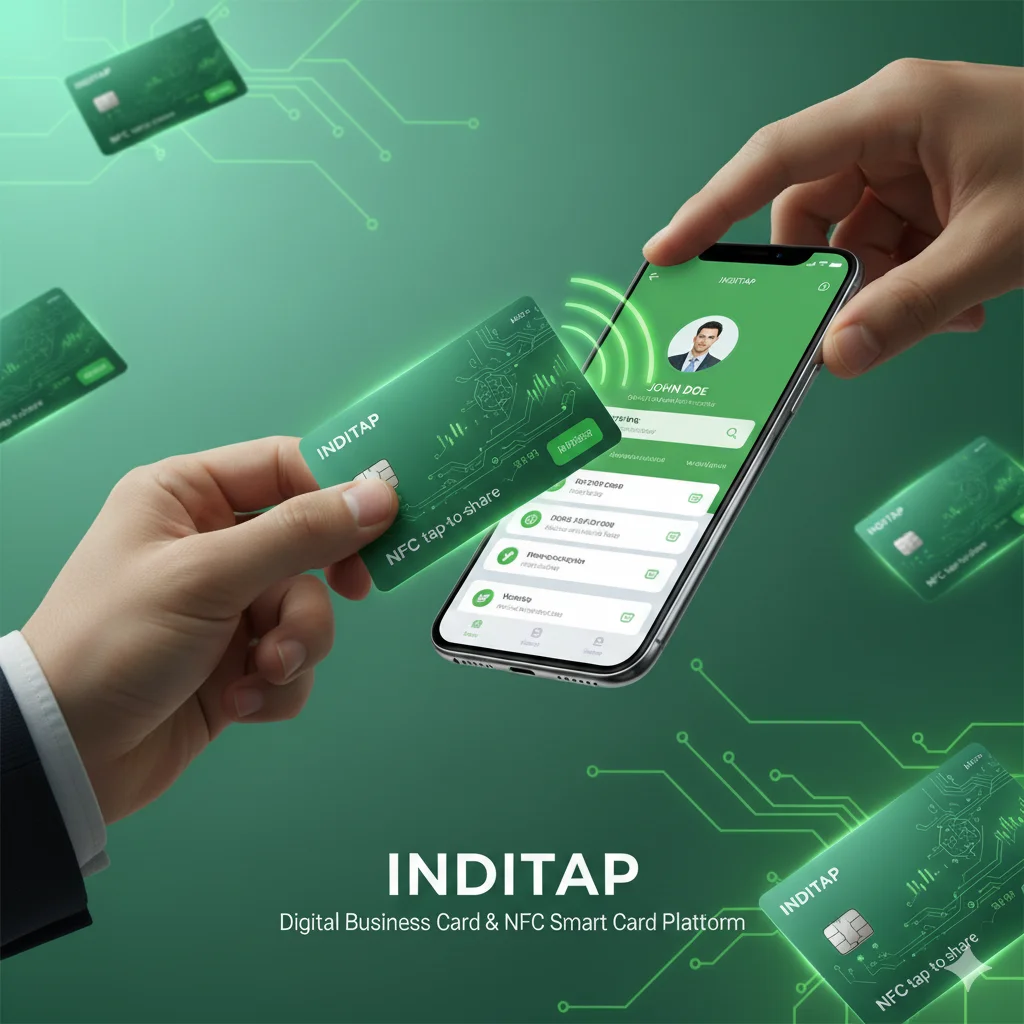 Most popular
NFC business card, PVCOur most popular card. Tap on any phone to open your profile. QR on the back.
₹249
Most popular
NFC business card, PVCOur most popular card. Tap on any phone to open your profile. QR on the back.
₹249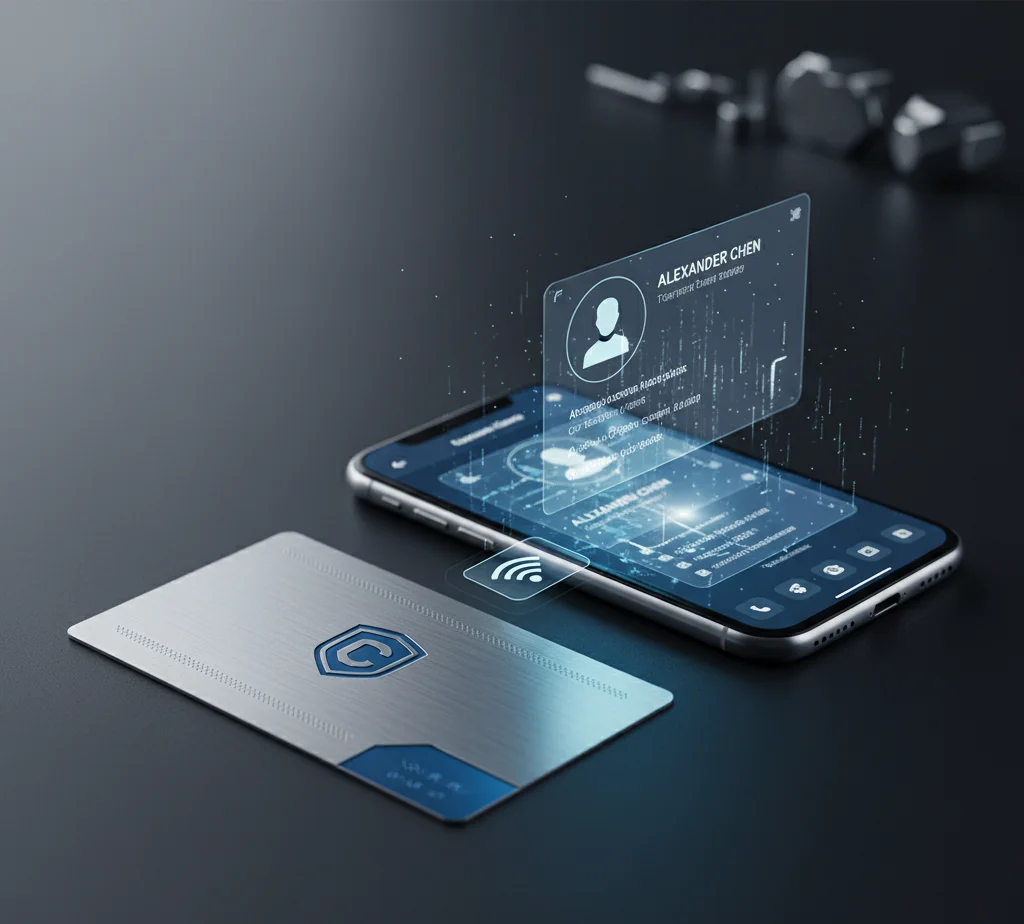 Premium
NFC business card, metalHeavy stainless steel card, laser engraved. Makes a lasting first impression.
₹749
Premium
NFC business card, metalHeavy stainless steel card, laser engraved. Makes a lasting first impression.
₹749Common questions
How many cards do we need to order?
Any number. Bulk discounts start at 10 cards and increase at 25, 50 and 100.
Can we use our existing card design?
Yes. Send your design and we adapt it for NFC cards, then send a proof before printing.
Who controls the pages?
You decide. Employees can edit their own pages, or we keep the company design locked and make changes for you on request.
Can we pause a card?
Yes. A paused card shows a polite "temporarily unavailable" page until you switch it back on or reassign it.
Do you provide GST invoices?
Yes. Add your GSTIN at checkout or in your quote request.
Can we see analytics for all employees?
Yes. Each card has its own insights showing opens, cities and taps, and we can share a combined report for your team.
Is employee data secure?
Pages only show the details you choose to publish. The card itself holds only a web link.
How long does a bulk order take?
After design approval, most team orders are set up and dispatched within a few working days, depending on quantity.